IKEv2 on iPhone & iPad
Settings → General → VPN.
Add RealVPN to iPhone or iPad settings using the built-in IKEv2 client — no app required.
What you need
- iPhone or iPad
- An active RealVPN plan
-
Get your IKEv2 config
Sign in at realvpn.io, open the Account menu and choose Manual VPN setup — or go straight to realvpn.io/settings.
Select IKEv2, choose a location close to you and press Generate config. You’ll get a server address, login and password.
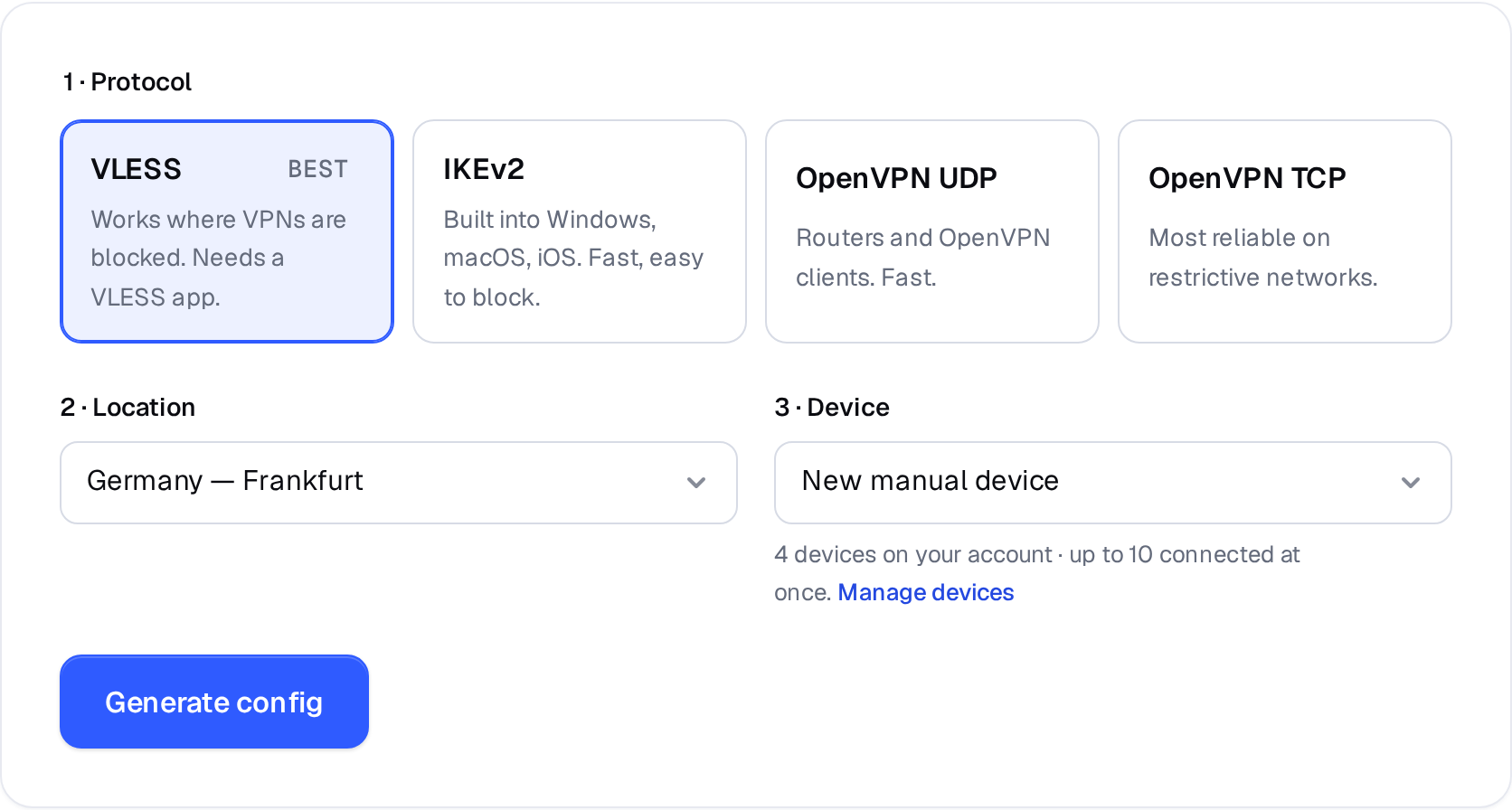
Manual VPN setup: pick a protocol, a location and a device. 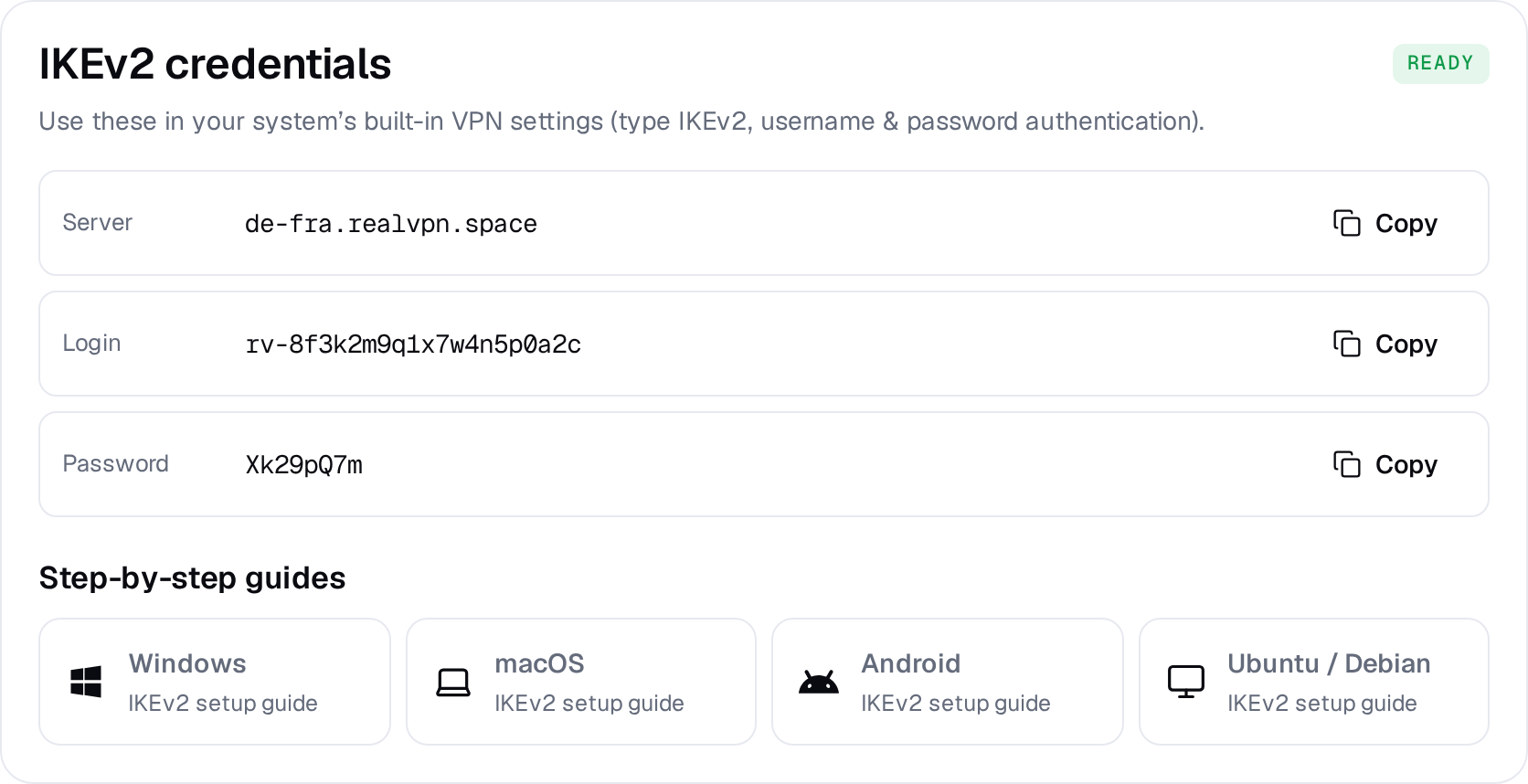
Example result — your values will be different. Device: choose New manual device the first time. Setting up the same device again? Pick it from the list to reuse its credentials instead of creating a new one.
-
Open VPN settings
Go to Settings → General → VPN & Device Management → VPN and tap Add VPN Configuration…
-
Fill in the configuration
9:41●●● ▮TypeIKEv2DescriptionRealVPNServerde-fra.realvpn.spaceRemote IDde-fra.realvpn.spaceUser Auth.UsernameUsernamerv-8f3k…Password••••••Leave Local ID empty. Tap Done.
-
Connect
Turn on the Status switch. A VPN badge appears in the status bar.
The RealVPN app is easier and switches protocols automatically — use native IKEv2 only if you can’t install apps.