IKEv2 on Windows
Windows Settings → VPN, no apps required.
Windows 10 and 11 have IKEv2 built in, so you can connect to RealVPN without installing anything.
What you need
- Windows 10 or 11
- An active RealVPN plan
-
Get your IKEv2 config
Sign in at realvpn.io, open the Account menu and choose Manual VPN setup — or go straight to realvpn.io/settings.
Select IKEv2, choose a location close to you and press Generate config. You’ll get a server address, login and password.
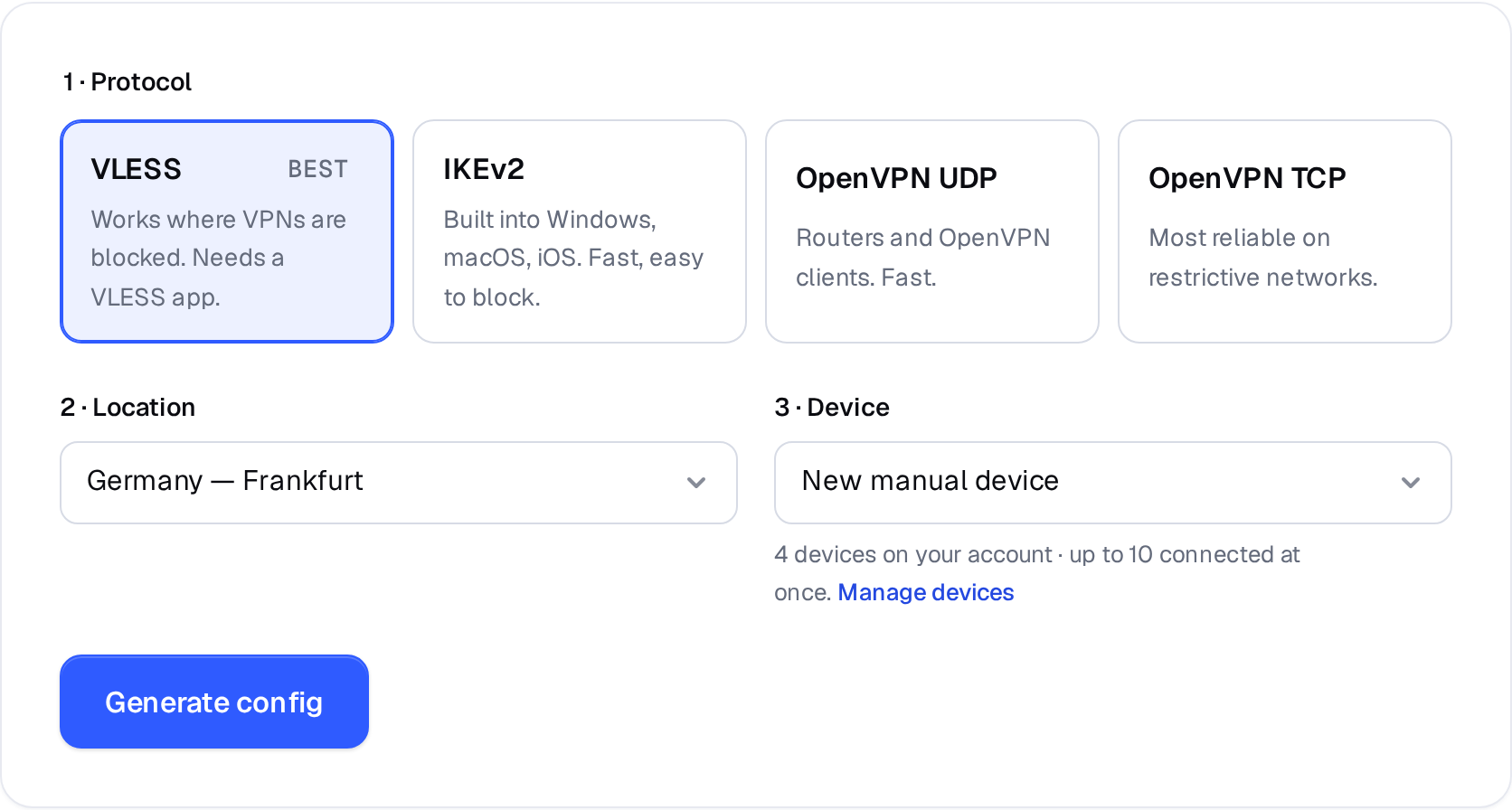
Manual VPN setup: pick a protocol, a location and a device. 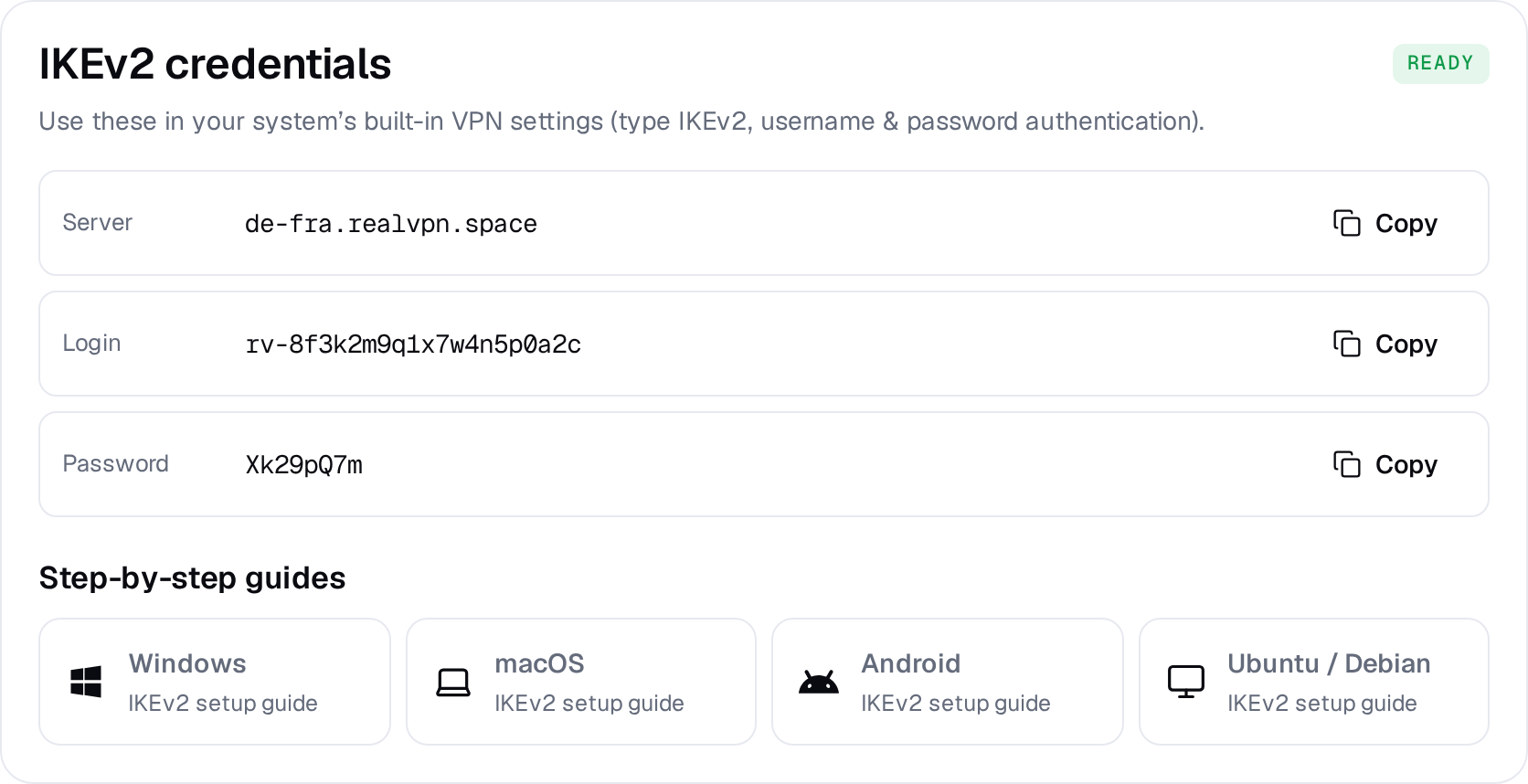
Example result — your values will be different. Device: choose New manual device the first time. Setting up the same device again? Pick it from the list to reuse its credentials instead of creating a new one.
-
Open VPN settings
Open Settings → Network & internet → VPN and click Add VPN (Add a VPN connection on Windows 10).
-
Fill in the connection
VPN providerWindows (built-in)Connection nameRealVPNServer name or addressde-fra.realvpn.spaceVPN typeIKEv2Type of sign-in infoUser name and passwordUser namerv-8f3k2m9q…Password••••••••Save- Server name: the server address from the config page. Use the domain name, not an IP address.
- VPN type: IKEv2.
- User name / Password: the login and password from the config page — not your RealVPN email.
-
Connect and disconnect
Click Connect next to RealVPN in the VPN list. You can also click the network icon in the taskbar, choose VPN and toggle RealVPN on or off.
Error 13801 or 13806? Make sure you entered the domain (e.g. de-fra.realvpn.space), not an IP, and that your system date and time are correct.