RealVPN on Mac
App Store or DMG, compact mode, kill switch.
RealVPN for Mac is a native app with a live server map, compact mode and a kill switch.
What you need
- macOS 13.0 or later for the Mac App Store version, or macOS 11 for the .DMG version
- A RealVPN account
-
Install the app
Get RealVPN from the Mac App Store. If you can’t use the App Store, download the .DMG file, open it and drag RealVPN into Applications.
-
Sign in and allow the VPN configuration
Open RealVPN and sign in with your RealVPN email and password. When macOS asks “RealVPN would like to add VPN configurations”, click Allow and enter your Mac password.
-
Connect
Click the power button. RealVPN connects to the fastest server automatically — or click any pin on the map to choose a location.
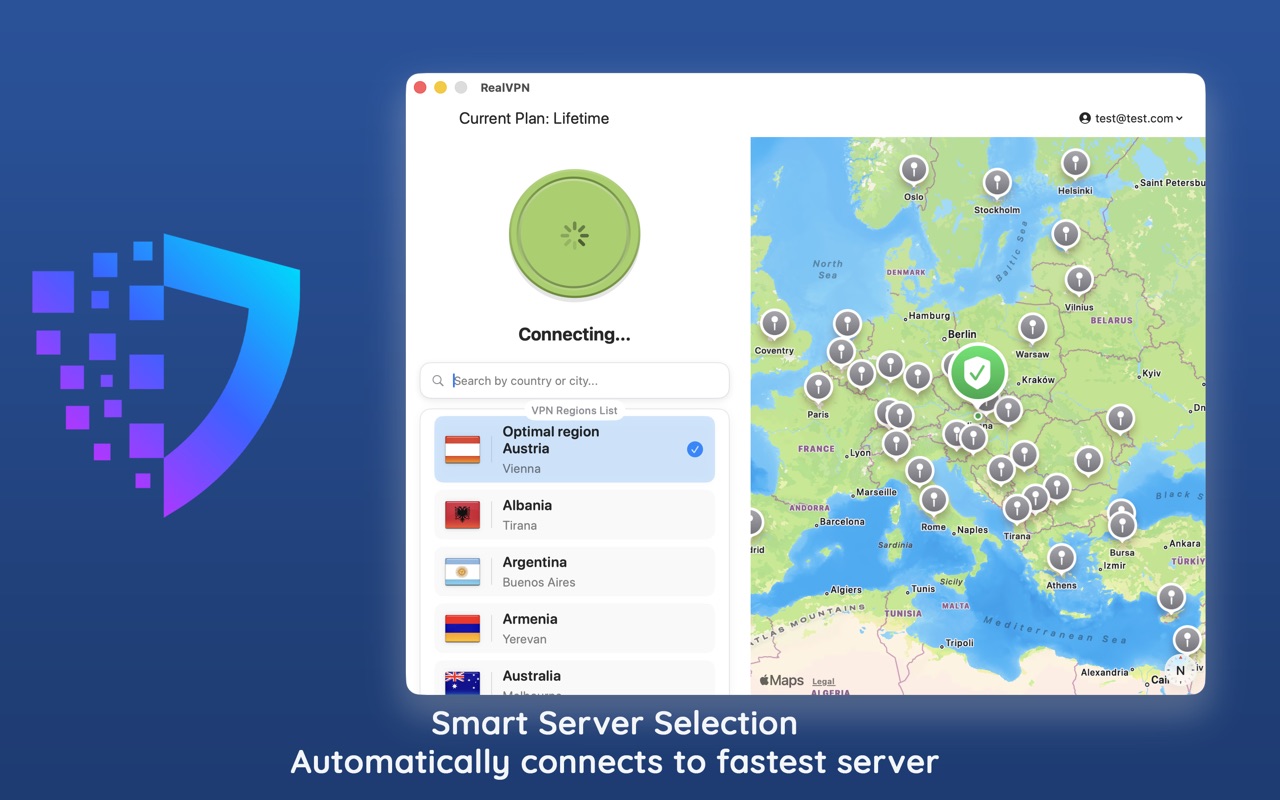
Smart server selection connects you to the fastest location. 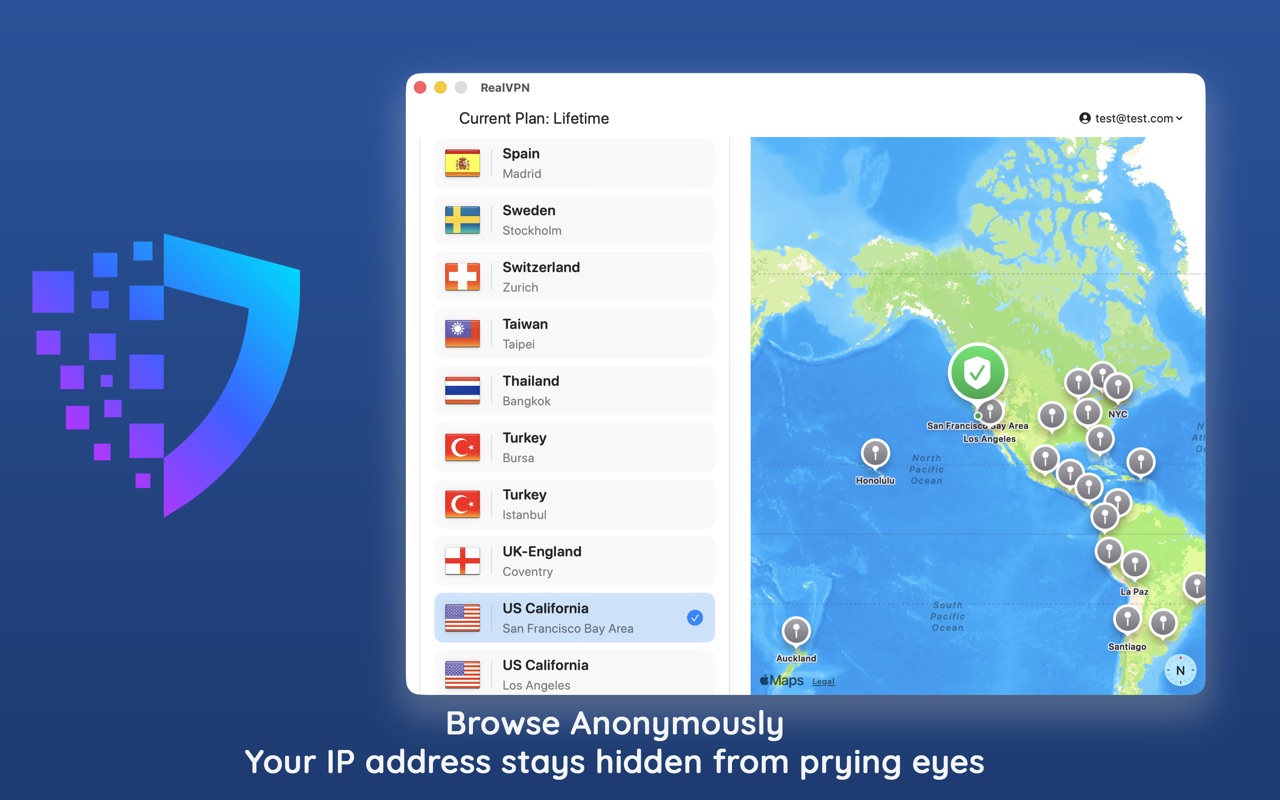
-
Tune the settings
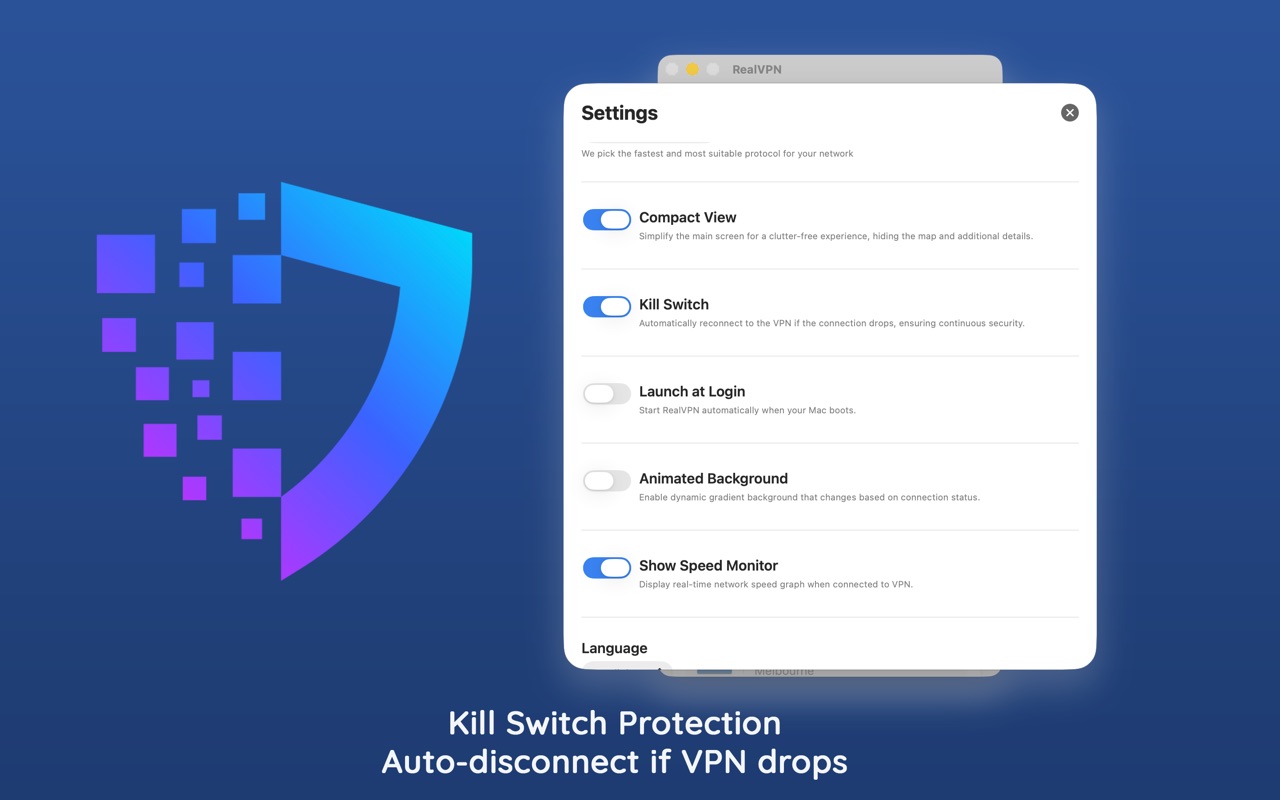
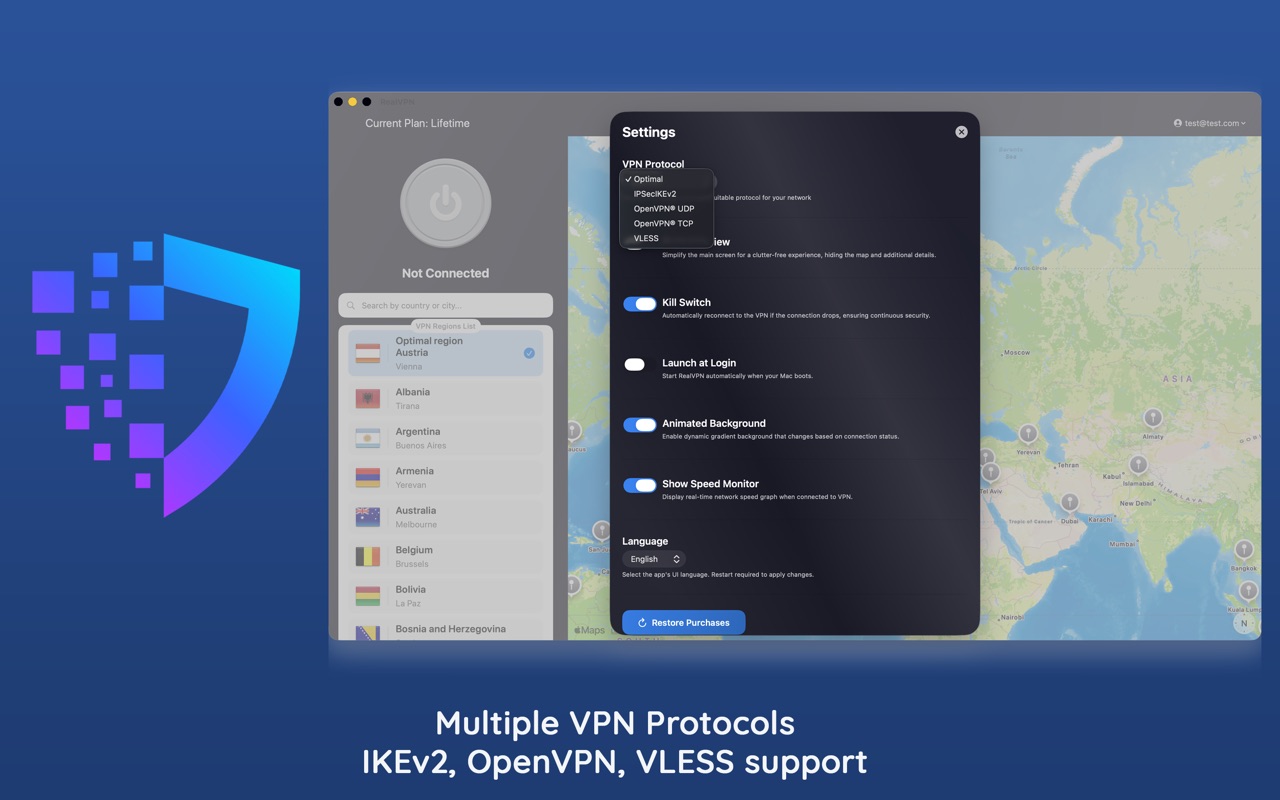
Open Settings to turn on Kill Switch (blocks the internet if the VPN drops), Launch at Login and Compact Mode. Protocols are under VPN Protocol.
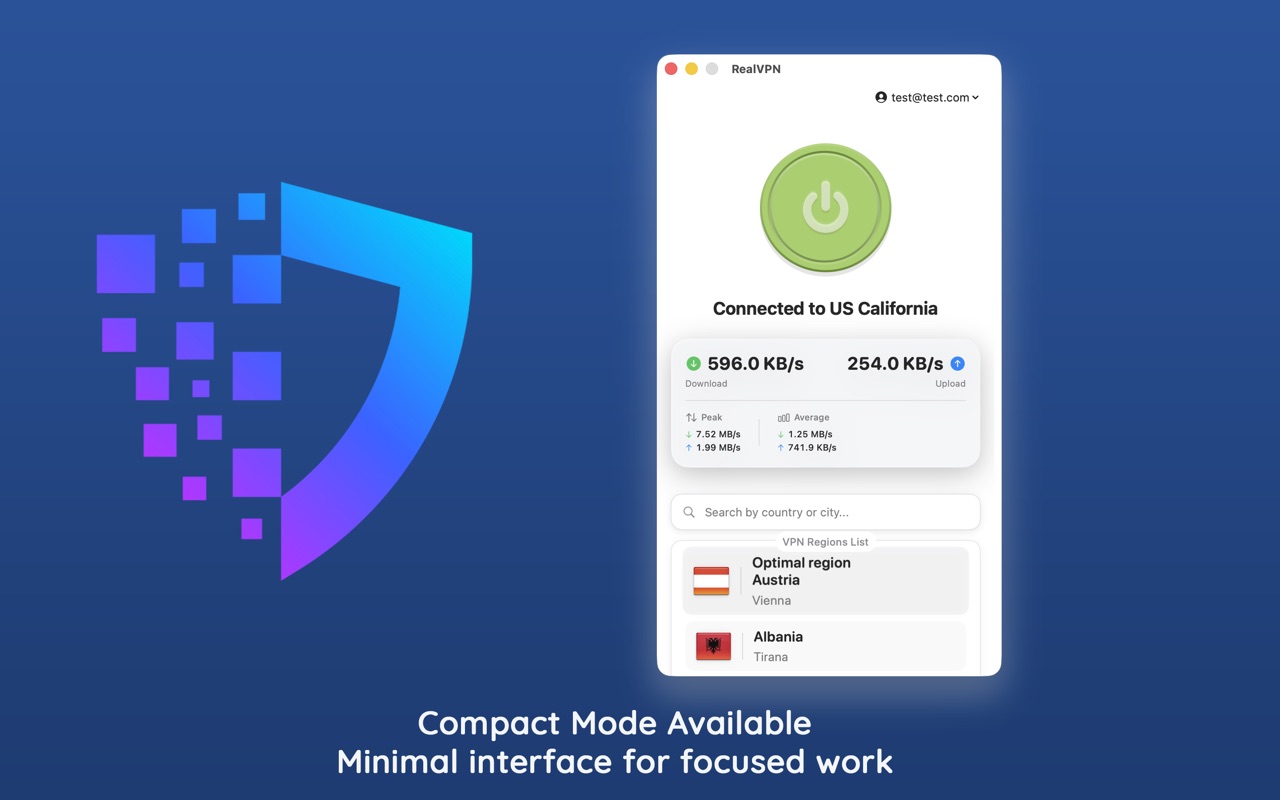
Prefer a small window? Compact Mode shows only the connect button, speed and location list.