OpenVPN on macOS
Tunnelblick or OpenVPN Connect.
Connect a Mac to RealVPN with Tunnelblick (free, open-source) or OpenVPN Connect.
What you need
- A Mac with a recent version of macOS
- An active RealVPN plan
-
Get your OpenVPN UDP (or TCP) config
Sign in at realvpn.io, open the Account menu and choose Manual VPN setup — or go straight to realvpn.io/settings.
Select OpenVPN UDP (or TCP), choose a location close to you and press Generate config. You’ll get a RealVPN.ovpn file (saved to your Downloads).
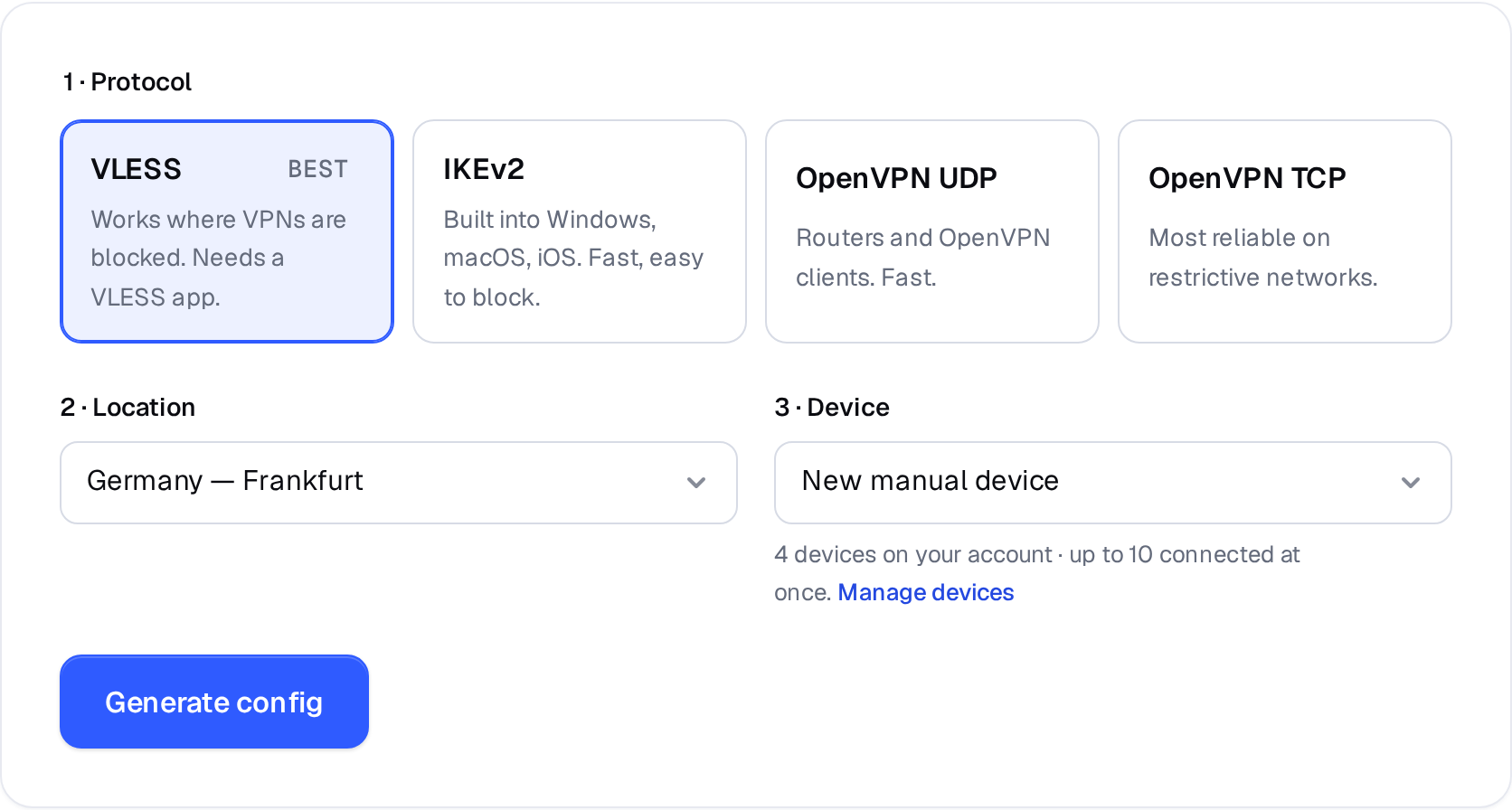
Manual VPN setup: pick a protocol, a location and a device. 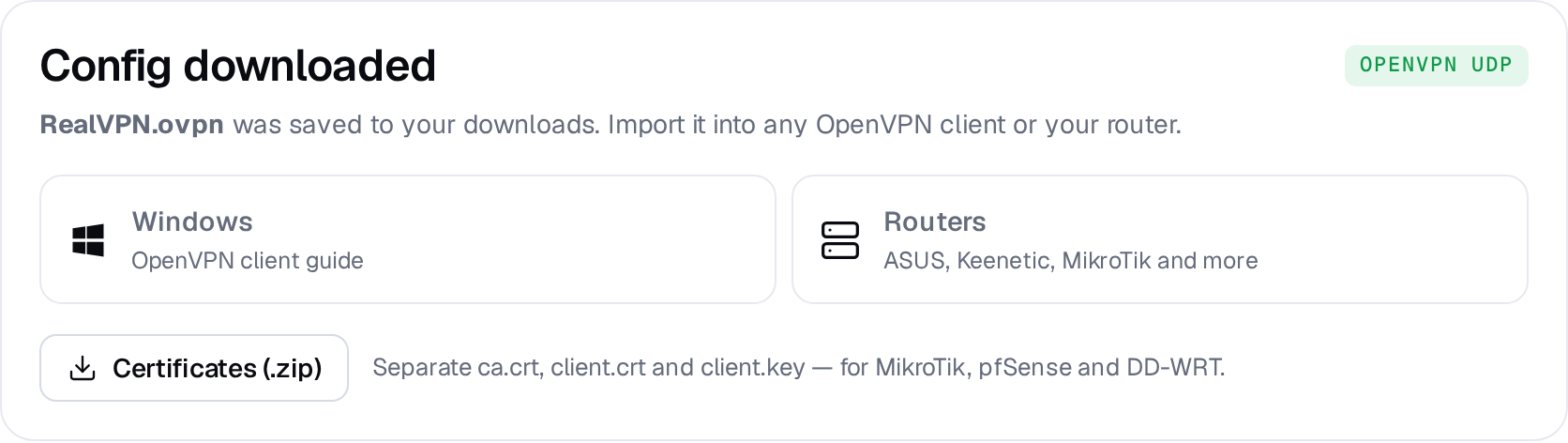
Example result — your values will be different. Device: choose New manual device the first time. Setting up the same device again? Pick it from the list to reuse its credentials instead of creating a new one.
-
Install Tunnelblick
Download the stable release from tunnelblick.net, open the .dmg and double-click Tunnelblick to install.
-
Add the RealVPN configuration
Double-click RealVPN.ovpn in Downloads. Tunnelblick asks who should use it — choose Only Me and enter your Mac password.
Install configuration “RealVPN”?CancelAll UsersOnly Me -
Connect from the menu bar
Click the Tunnelblick icon in the menu bar and choose Connect RealVPN.
Prefer OpenVPN Connect? Install it from openvpn.net/client, choose Import Profile → Upload File and select RealVPN.ovpn.